Craft
Mastering ProRes RAW in DaVinci Resolve 20.2: A Post-Production Guide (Part 2)
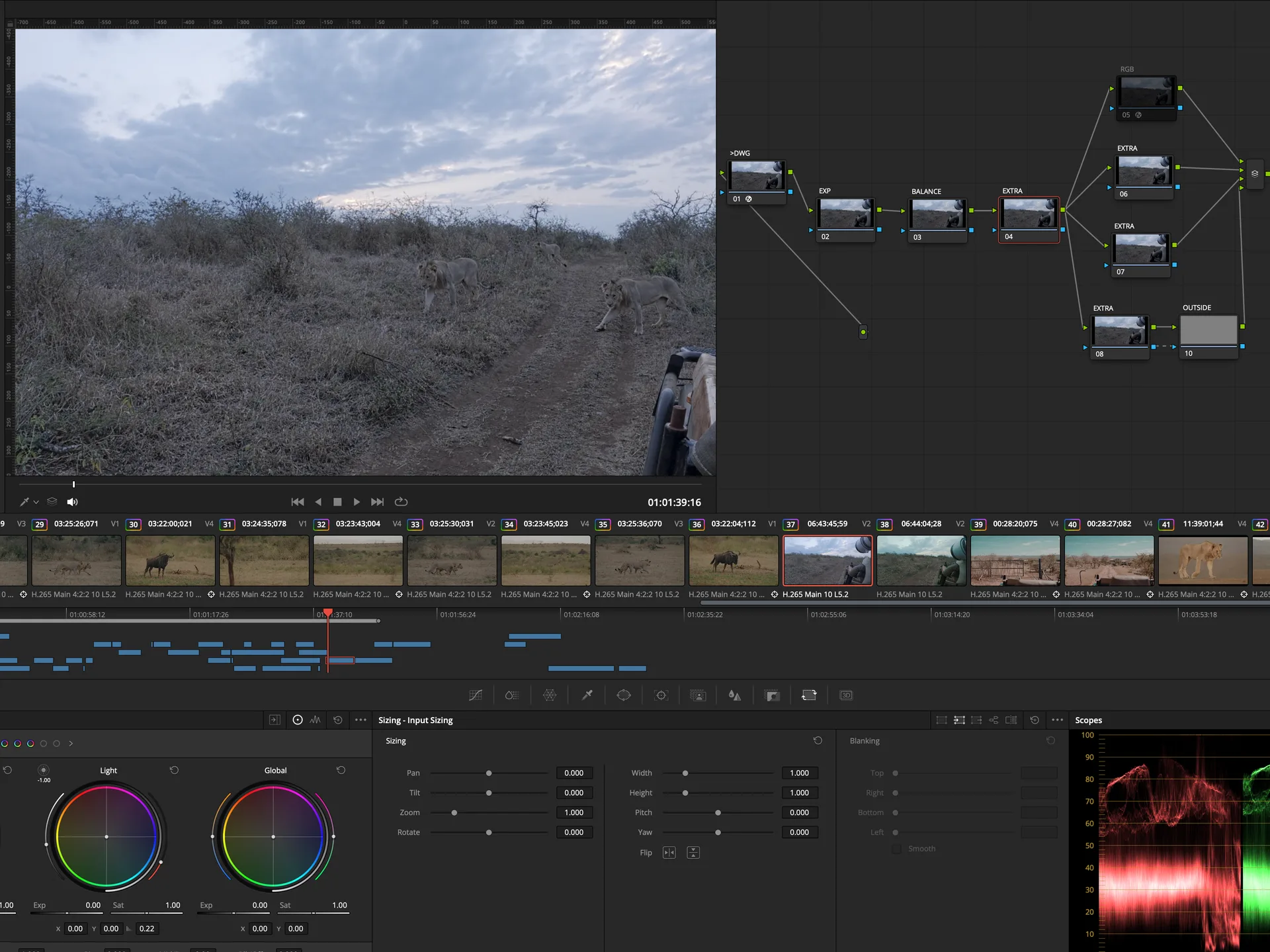
As a filmmaker, I’ve long used tools that streamline workflows without sacrificing quality. DaVinci Resolve 20.2, released on September 9, 2025, delivers just that with native ProRes RAW support, eliminating clunky workarounds like converting to CinemaDNG. Filmmakers can now import and decode ProRes RAW and ProRes RAW HQ clips seamlessly on macOS, Windows, and Linux. This is Part 2 of my series, focusing on editing and grading ProRes RAW in Resolve 20.2. Check out Part 1 for the backstory and shooting tips.
Working with ProRes RAW in Resolve 20.2
Camera RAW Tab: A Simplified Approach
ProRes RAW files are managed in the Camera RAW tab, but unlike Blackmagic RAW, Resolve offers a “RAW to Log” dropdown with various log profiles instead of separate color space and gamma controls. This simplifies setup but can feel limiting for advanced workflows using DaVinci Color Transform Language (DCTLs).
For maximum flexibility, I recommend selecting “None” in RAW to Log to work in a linear gamma, preserving the raw sensor data. To handle unsupported profiles like Sony S-Log3 (common for cameras like the Sony FX6), set up a Color Space Transform (CST) in a CST timeline. Use the camera’s native color space (e.g., Sony S-Gamut3 for FX6 or Apple ProRes RAW for iPhone 17 Pro) as the input color space, with linear gamma. Then, transform to DaVinci Wide Gamut as your working color space for grading flexibility, and output to Rec. 709 Gamma 2.4 at the node pipeline’s end for deliverables like YouTube. This approach, refined over countless projects, ensures precise color management for indie and wildlife filmmaking workflows.
Current Limitations and Workarounds
Resolve 20.2’s ProRes RAW implementation has quirks, but they’re manageable with a pro’s toolkit:
- Color Temperature, No Tint Control: You can adjust temperature directly, but tint requires the offset wheel in a single node to correct casts. I expect Blackmagic to add a tint slider in future updates, as they did for Nikon RAW.
- Exposure Bias Instead of Stops: The exposure bias slider ranges from -1 to +1. For stop-based adjustments, tweak ISO (e.g., ISO 400 to 800 for +1 stop). Post-production ISO changes don’t alter captured noise, a nuance I’ve learned to navigate.
- No Shadow/Highlight Controls: These sliders, standard in other RAW profiles, are absent but likely to appear in an future update.
- Preview Quirks: On the Edit page, clips may show black bars or artifacts due to ProRes RAW’s 1:1 sensor ratio and slight crop factors. These resolve during playback; don’t waste time on manual transformations.
Color Management Tips
For optimal results, I rely on DaVinci YRGB color management with DaVinci Wide Gamut processing, as it’s the ideal working space for ProRes RAW’s dynamic range. Match your output color space to your delivery and monitor calibration (e.g., Rec. 709 Gamma 2.4 for YouTube). My tests confirm ProRes RAW luminance matches CinemaDNG conversions, with only color temperature differences from converters, streamlining what was once a tedious workflow.
Color Grading Workflow
ProRes RAW imports flat, a blank canvas I love as a colorist. Use a parallel node structure: one node each for lift, gamma, and gain. Set blacks with lift and mids with gamma to build contrast. For cinematic saturation, a three-node density/saturation setup, unlocks ProRes RAW’s 12-bit depth for stunning results. This technique has been a cornerstone of my grading process for years.
Blackmagic plans to integrate ProRes RAW into their Camera app and Video Assist 12G (release the update, and I'll purchase it at launch!), further enhancing workflow options.
Paired with Part 1’s shooting tips, Resolve 20.2 makes ProRes RAW a powerhouse for filmmakers.